Birthday invitation with your child's photo
A birthday invitation with your child's photo is the one that doesn't get lost in the class group chat: all it takes is a face-forward photo in good light and an AI tool that turns it into a themed illustration without losing the likeness.
- The photo: face-forward, good natural light, no hat or sunglasses.
- With AI: upload the photo, pick a theme, and get the drawing in a minute.
- The text: add the same basics as always (date, time, place, RSVP…).
- Privacy: always use a photo of your own child, never another child's without permission.
Why a Photo Invitation Stands Out From a Generic Template
Out of the dozen invitations that land in the class group chat some months, the one with your child's actual face is the one that gets opened first — any parent recognizes a specific kid faster than another generic balloon graphic or template cake.
A photo also solves a real problem: when the same chat gets several similar-looking invitations in a short span, the one with a familiar face is the one that doesn't get mixed up with another. It's the difference between "another invitation" and "Emma's party".
No design skills or hired help needed — with one photo and an AI tool that turns it into a themed illustration, the result looks like a professionally made invitation in a couple of minutes.
Which Photo to Pick: 5 Requirements for a Good One
Not every photo works equally well. Before you upload one, run through these five points:
- Face forward: looking straight at the camera, not in profile or shot from above.
- Good natural light: near a window or outdoors works better than flash or yellow indoor lighting.
- Simple background: a plain wall or an uncluttered background helps the AI read the features clearly.
- No hats or sunglasses: anything covering part of the face lowers how much the result actually looks like your child.
- Recent photo: the more current it is, the closer the drawing will look like your child today.
A phone photo works just fine — no professional camera needed, as long as the face is clearly visible.
How AI Turns the Photo Into a Themed Character
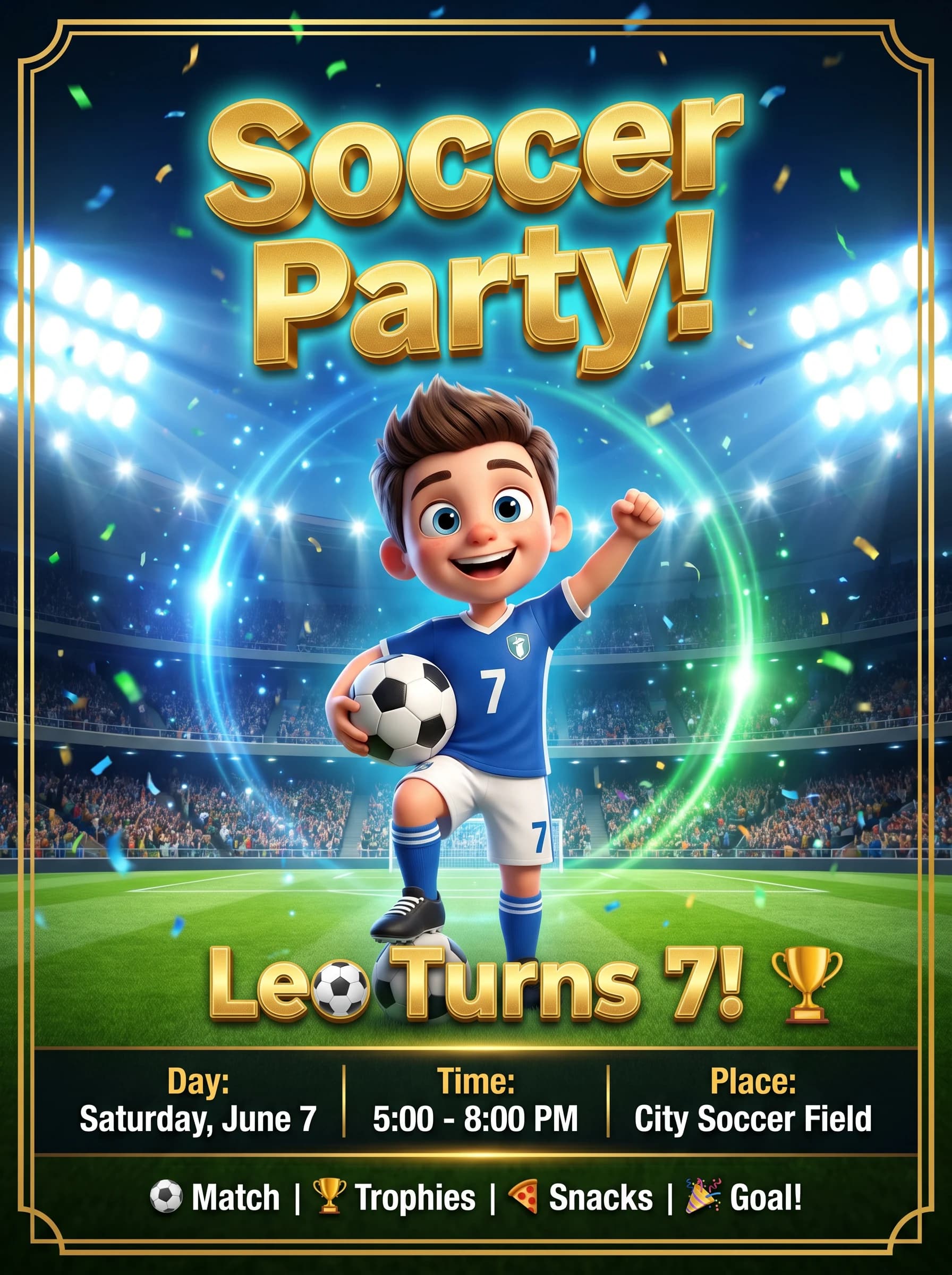
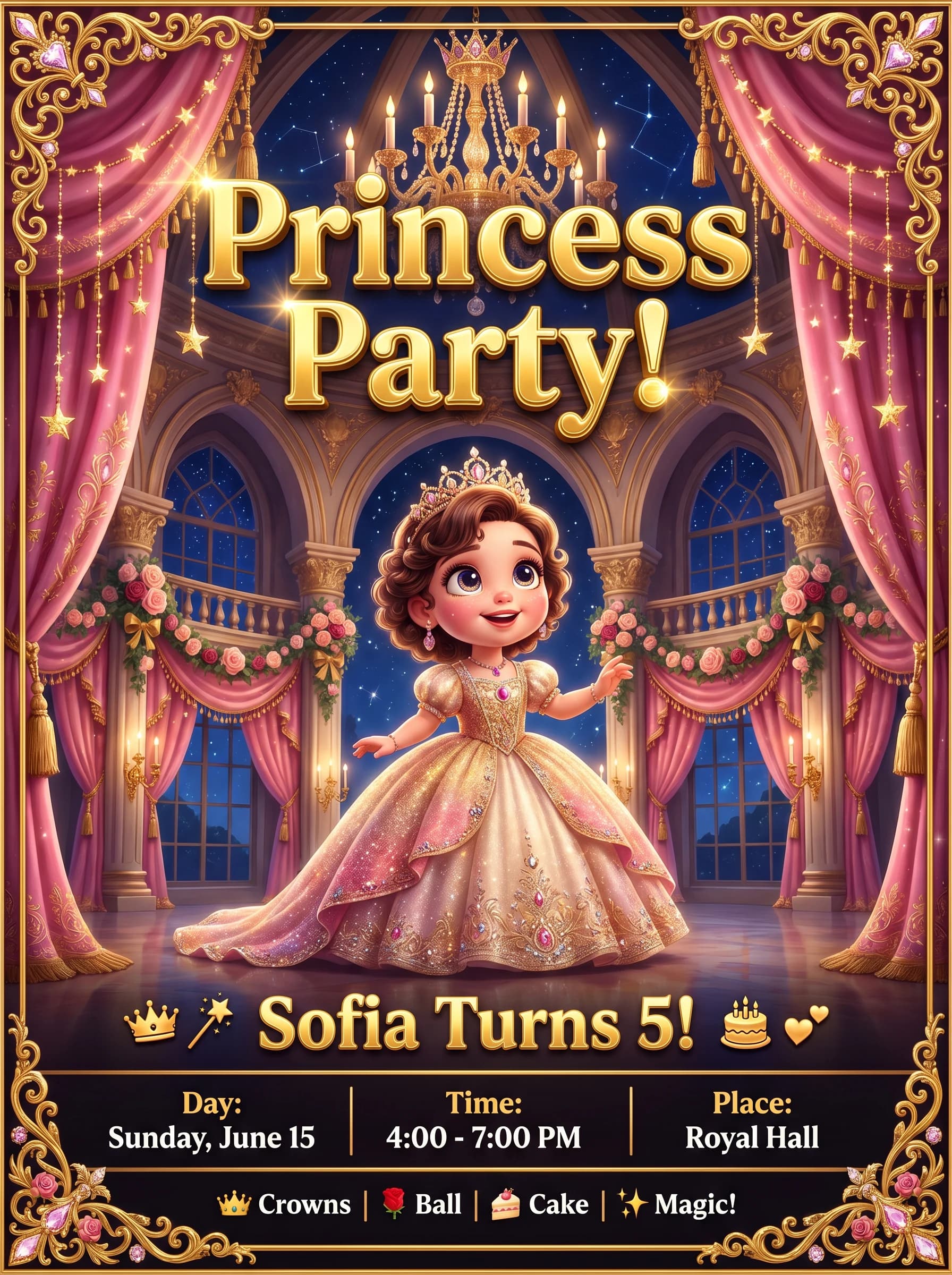
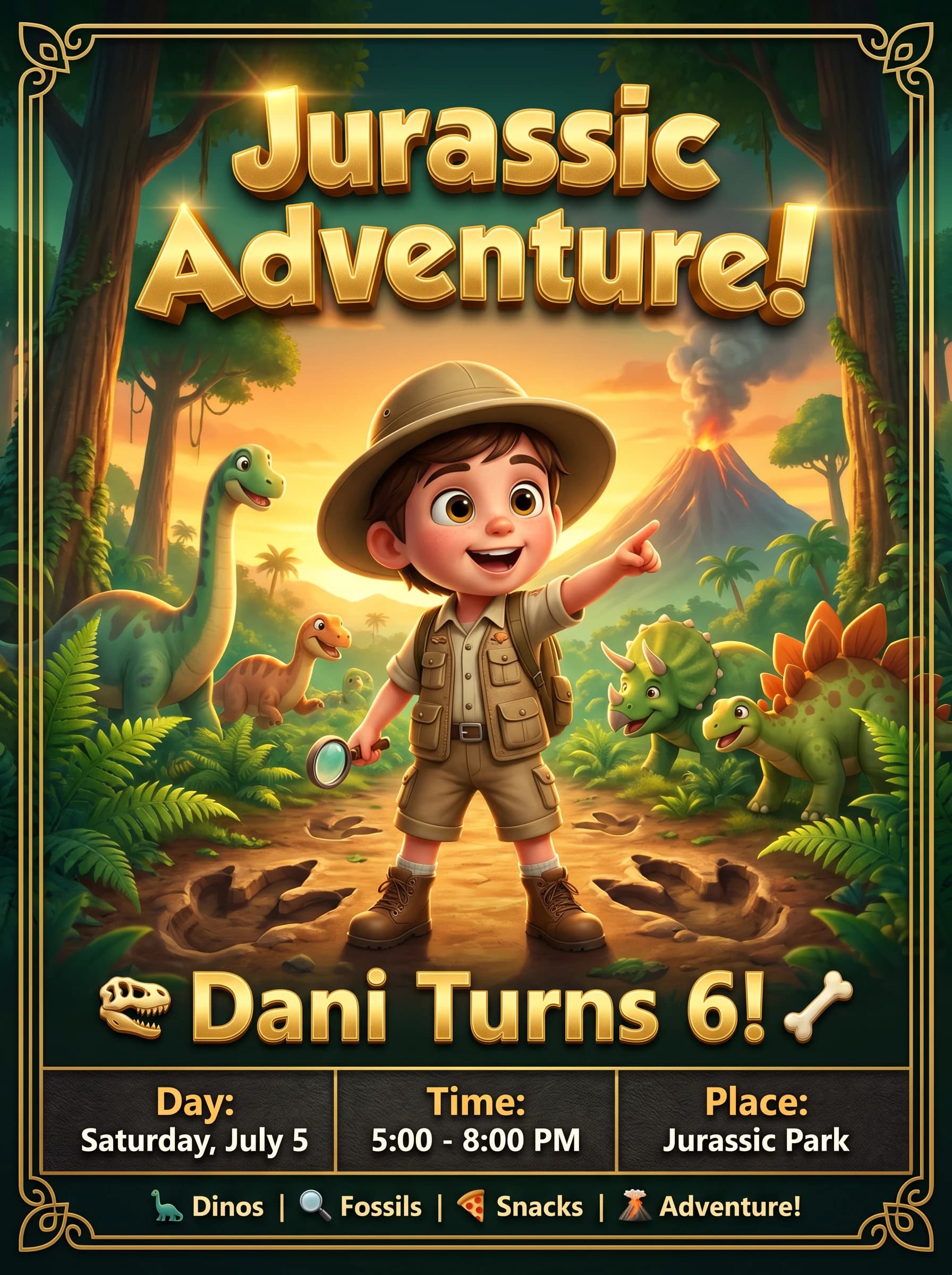
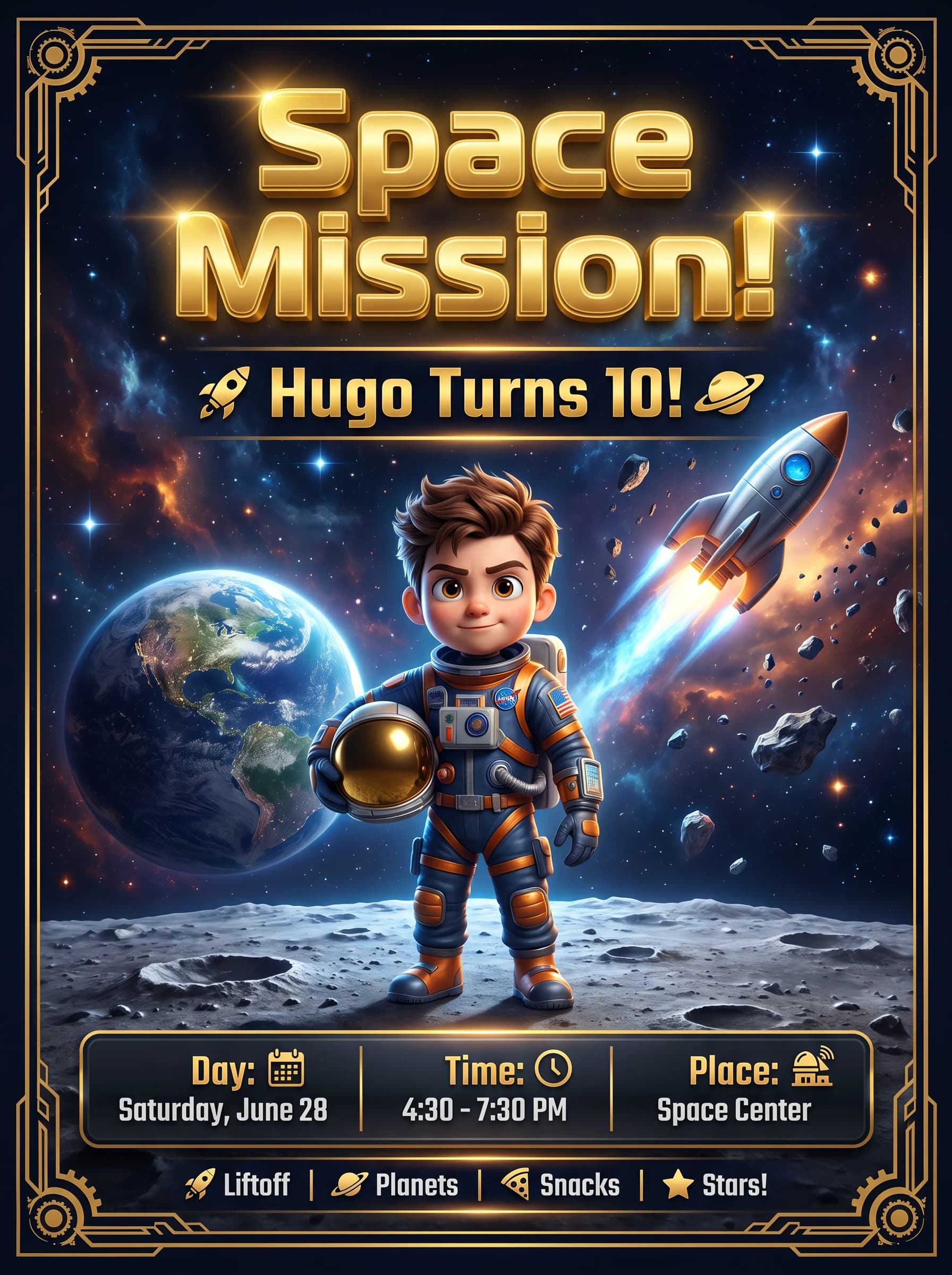
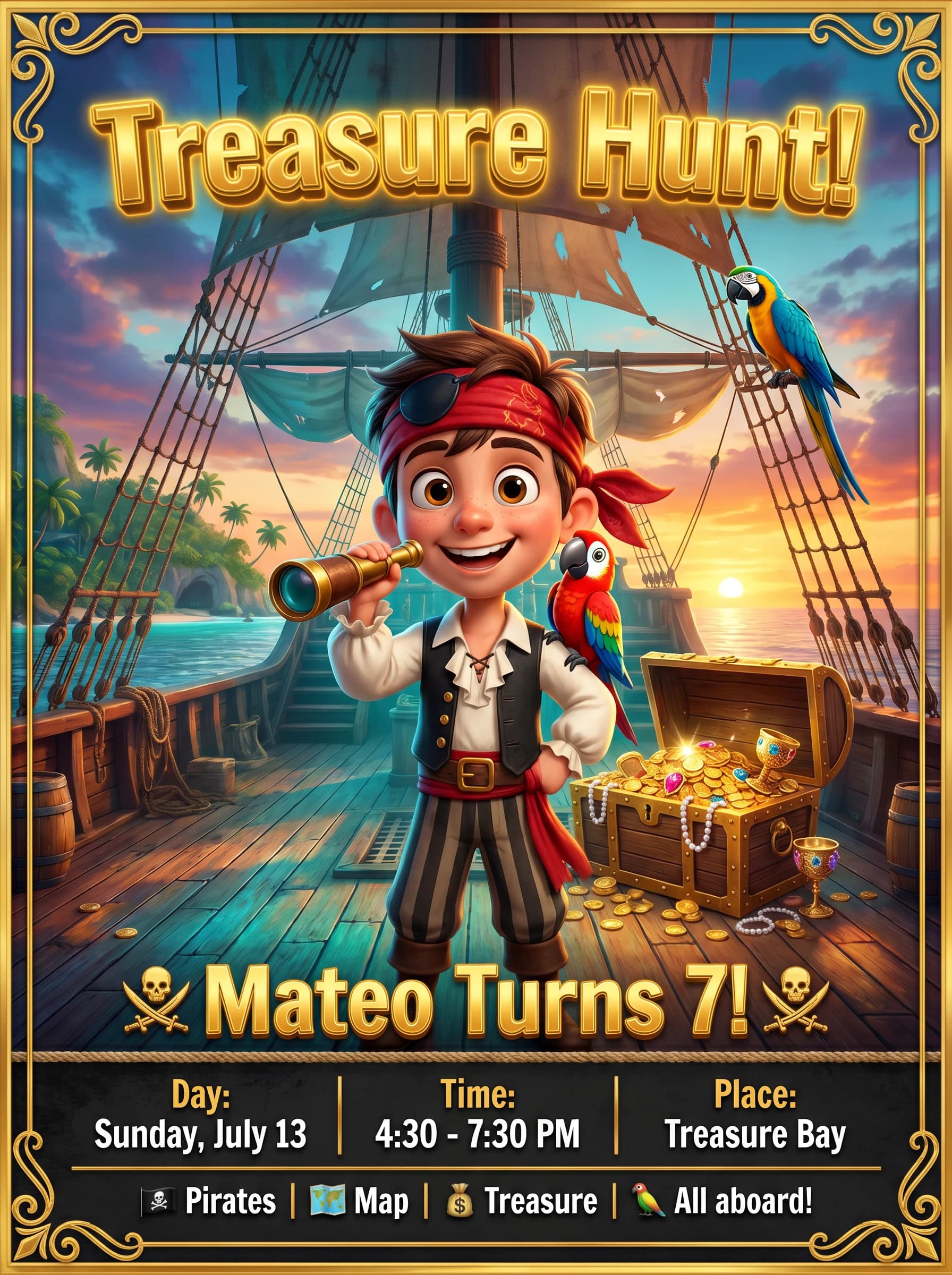
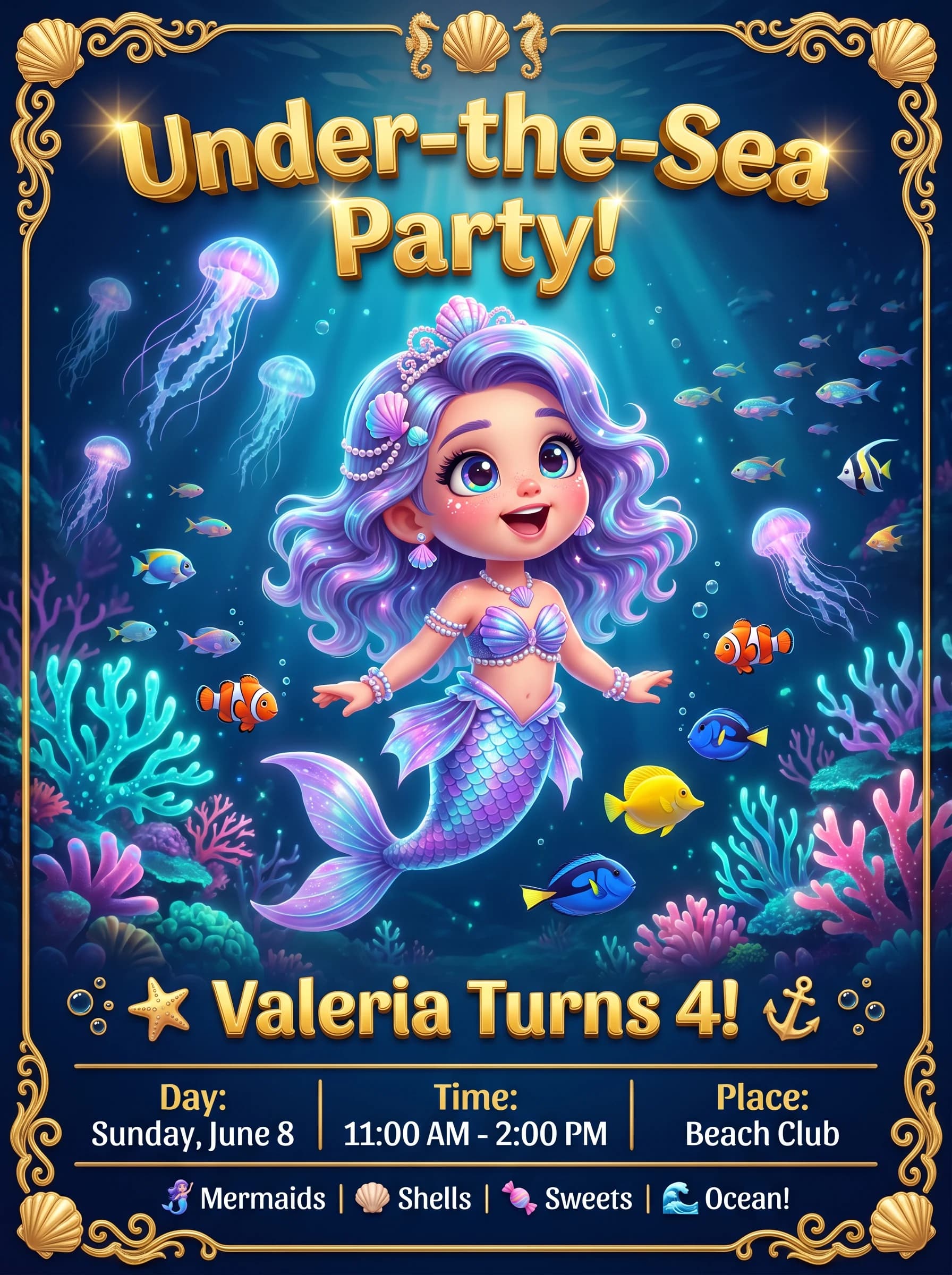
The process has three steps: upload the photo, pick a theme — dinosaurs, princesses, soccer and more — and let the AI generate an illustration that keeps your child's features.
The result isn't the original photo pasted onto a themed background — it's a brand-new illustration that keeps the likeness: same hair, same features, reimagined as a character in the theme you picked.
Want to see it with your own child's photo? Create your invitation with AI in a minute — upload the photo, pick a theme, and add the date, time and place, no design skills or waiting around.
See how the invitations look
Upload a photo, pick a theme and download it WhatsApp-ready in 30 seconds.
First one free · No sign-up · Ready in 30 seconds
It's Your Child's Photo: How We Keep It Safe
Always use a photo of your own child, never another child's photo without their family's permission. If you want to include a friend or cousin in the design, ask their parents first — it's their child's image, not just a detail of your party.
Photos you upload are used only to generate your invitation and are handled securely. Check the details in our privacy policy before you upload any image.
What Text to Pair With the Photo
The photo gets the attention, but the invitation only does its job if the wording carries what every family needs to plan around: who's turning what age, when, where, and how to RSVP.
If you're not sure what to include, check what to write on a birthday invitation for the full checklist, plus ready-to-copy wording by age.
From Photo to an Invitation Ready to Send on WhatsApp
Once it's generated, the photo invitation downloads already sized to share straight on WhatsApp, no cropping or margins to adjust by hand.
Check how to send it on WhatsApp without the hassle, from the ideal image size to sending it without starting a new group with the whole class.
Frequently asked questions
What kind of photo works best for the AI generator?+
A face-forward photo with good natural light, without a hat or sunglasses covering the face. A simple background helps the AI read the features clearly. No professional camera needed — a recent phone photo works perfectly as long as the face is clearly visible.
Can I use a photo of another child on the invitation?+
Only with that family's permission. The recommendation is to always feature a photo of your own child as the star of the invitation. If you want to include a friend or relative in the design, ask their parents first — it's their child's image, not just a detail of your party.
What happens to the photo I upload to the generator?+
It's used only to generate your invitation and is handled securely — it isn't published or shared anywhere else. You can check exactly how we handle and protect the photos you upload in our privacy policy before you upload any image of your child.
Does the photo need to be recent?+
Yes, the more current the better: the AI keeps the likeness from the photo you provide, so a two-year-old picture can generate a drawing that no longer looks like your child today. Pick the most recent photo you have where the face is clearly visible.
Does it work with a photo taken on a phone?+
Yes, no professional camera required. What matters is a face-forward shot with good natural light and no blur, taken close enough that the features are easy to make out. Avoid nighttime, very dark, or far-away photos — the sharper the face in the original photo, the better the final result.
You may also like
First one free · No sign-up · Ready in 30 seconds